
Moov - Integration Guidline
This instruction is allowed to integrate betweeb Embarc and Moov
Setup Moov Webhooks
- Go to Developers -> Webhooks -> Click
+ New webhook
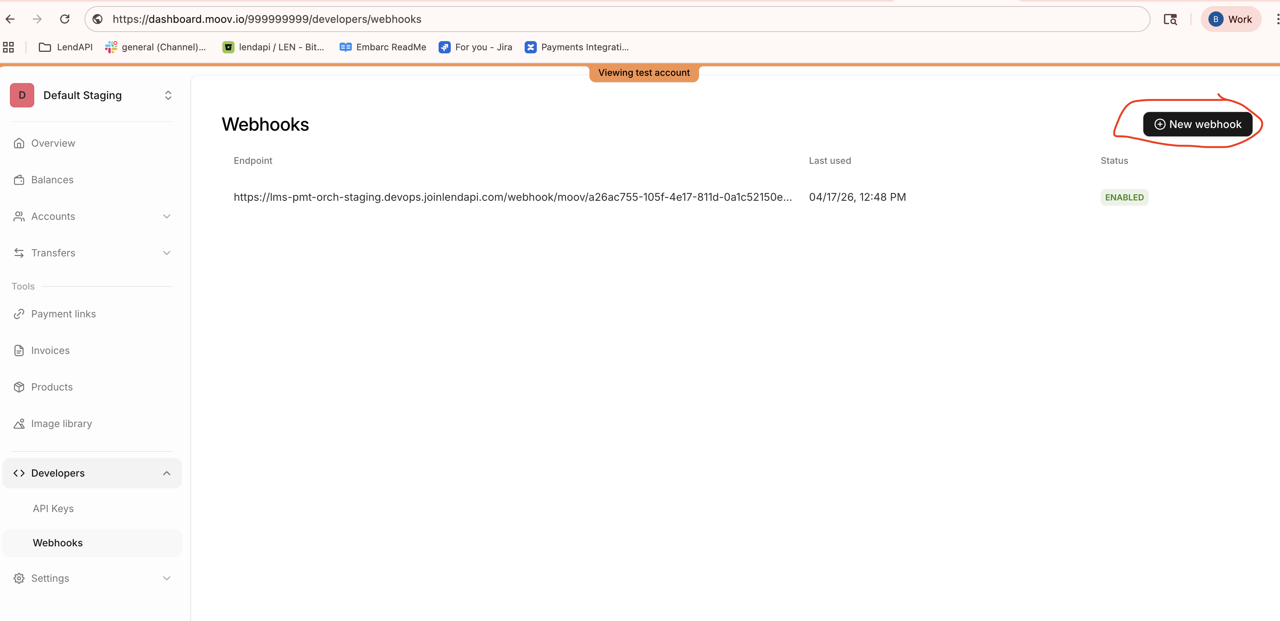
- Paste the webhook that is provided by Embarc team
Please contact embarc team to get the URL to add to your webhook
ex.
Production - URL
- Embarc Payment Service: https://pmt-orch.lendapi.com/webhook/moov/{embarc-payment-tenantid}/
Staging URL:
- Embarc Payment Service: https://lms-pmt-orch-staging.devops.joinlendapi.com/webhook/moov/{embarc-payment-tenantid}/
QA URL:
- Embarc Payment Service: https://lms-pmt-orch-qa.devops.joinlendapi.com/webhook/moov/{embarc-payment-tenantid}/
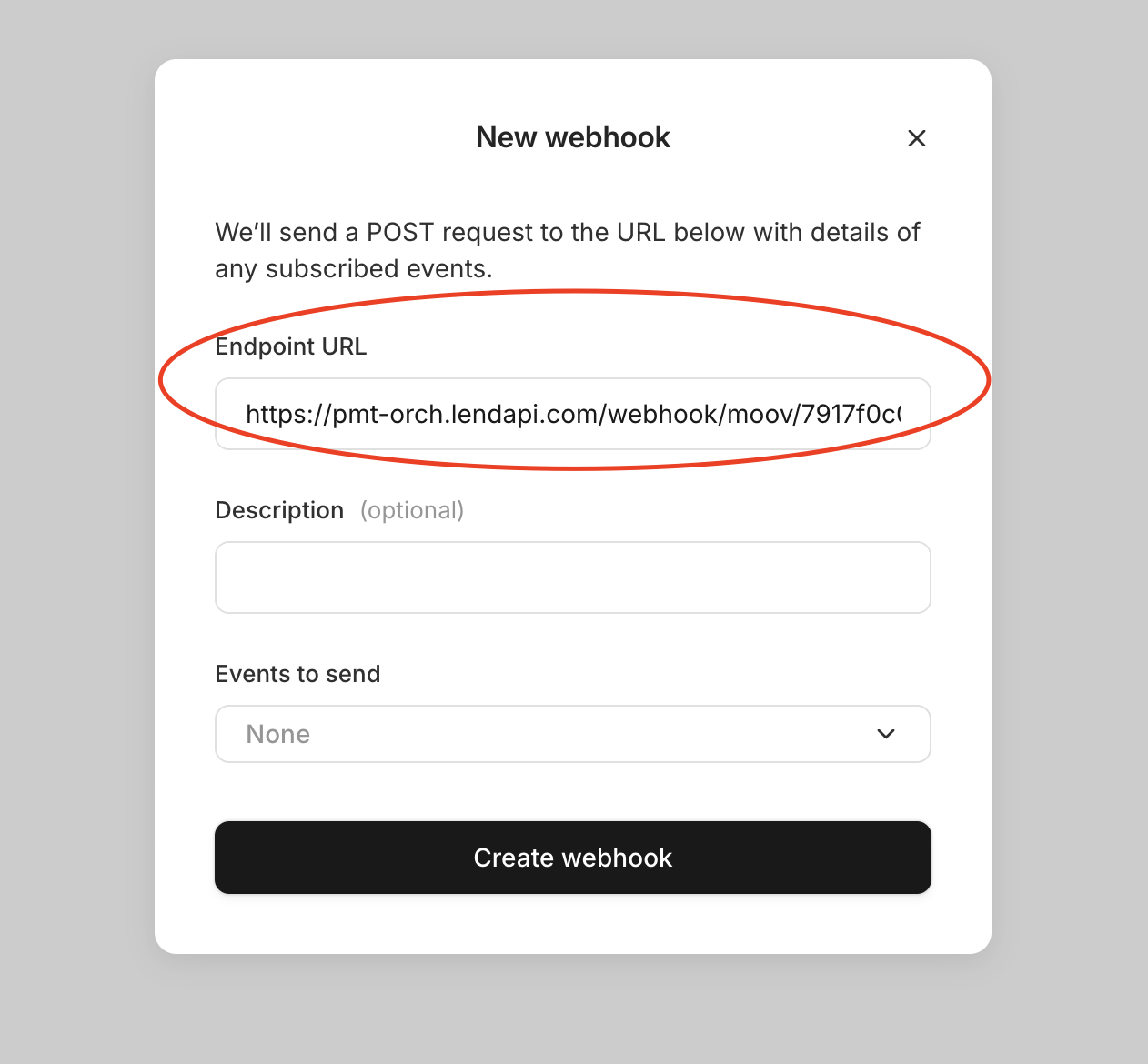
- Apply
all eventsto send to embarc
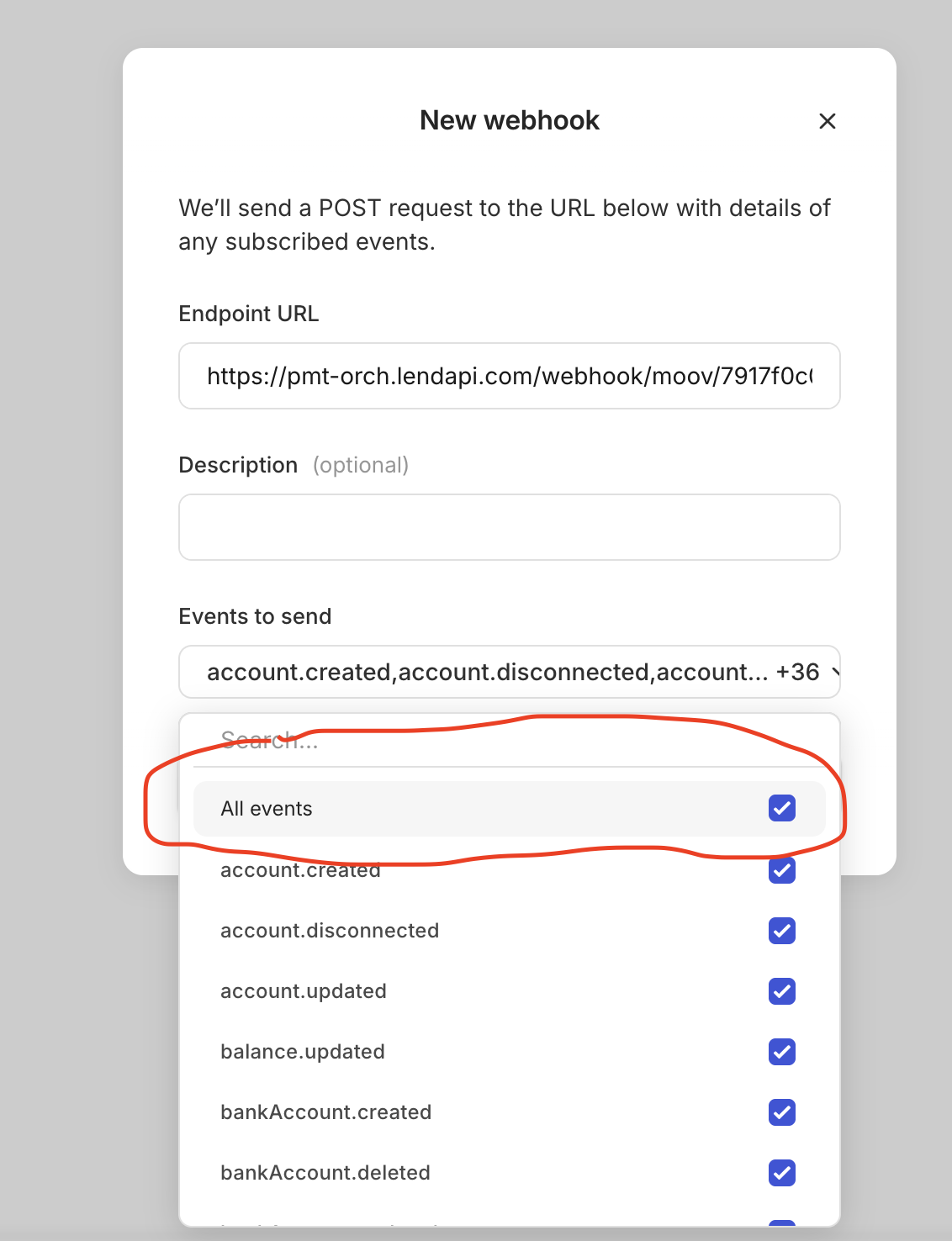
Or you can specify the following
account.created
account.disconnected
account.updated
balance.updated
bankAccount.created
bankAccount.deleted
bankAccount.updated
cancellation.created
cancellation.updated
capability.requested
capability.updated
card.autoUpdated
dispute.created
dispute.updated
invoice.created
invoice.updated
networkID.updated
paymentMethod.disabled
paymentMethod.enabled
refund.created
refund.updated
representative.created
representative.deleted
representative.updated
terminalApplication.created
terminalApplication.updated
transfer.created
transfer.updated
walletTransaction.updated
wallet.created
wallet.updated
Generate Moov API Key
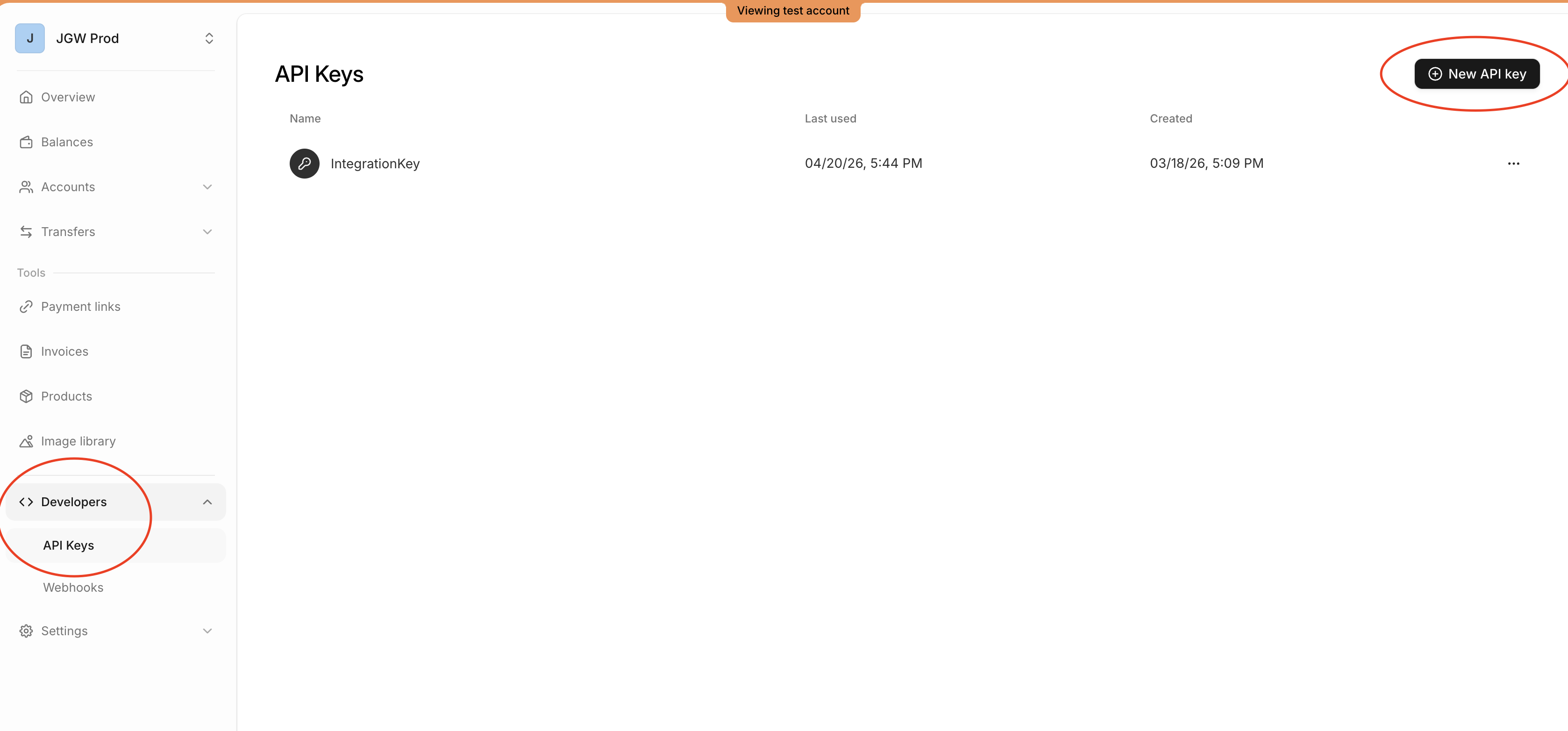
- Go to Developers → API Keys → click
+ New API key
Production - URL
- Embarc Payment Service:
- Embarc API: https://embarc-api.lendapi.com
- Embarc Portal https://{your-tenant-name}.embarc.lendapi.com
- Embarc Borrower Portal: https://{your-tenant-name}.borrower.embarc.lendapi.com
Staging URL:
- Embarc Payment Service: https://lms-pmt-orch-staging.devops.joinlendapi.com
- Embarc API: https://embarc-api-staging.lendapi.com
- Embarc Portal https://{your-tenant-name}.embarc-staging.lendapi.com
- Embarc Borrower Portal: https://{your-tenant-name}.borrower.embarc-staging.lendapi.com
QA URL:
- Embarc Payment Service: https://lms-pmt-orch-qa.devops.joinlendapi.com
- Embarc API: https://embarc-api-qa.lendapi.com
- Embarc Portal https://{your-tenant-name}.embarc-qa.lendapi.com
- Embarc Borrower Portal: https://{your-tenant-name}.borrower.embarc-qa.lendapi.com
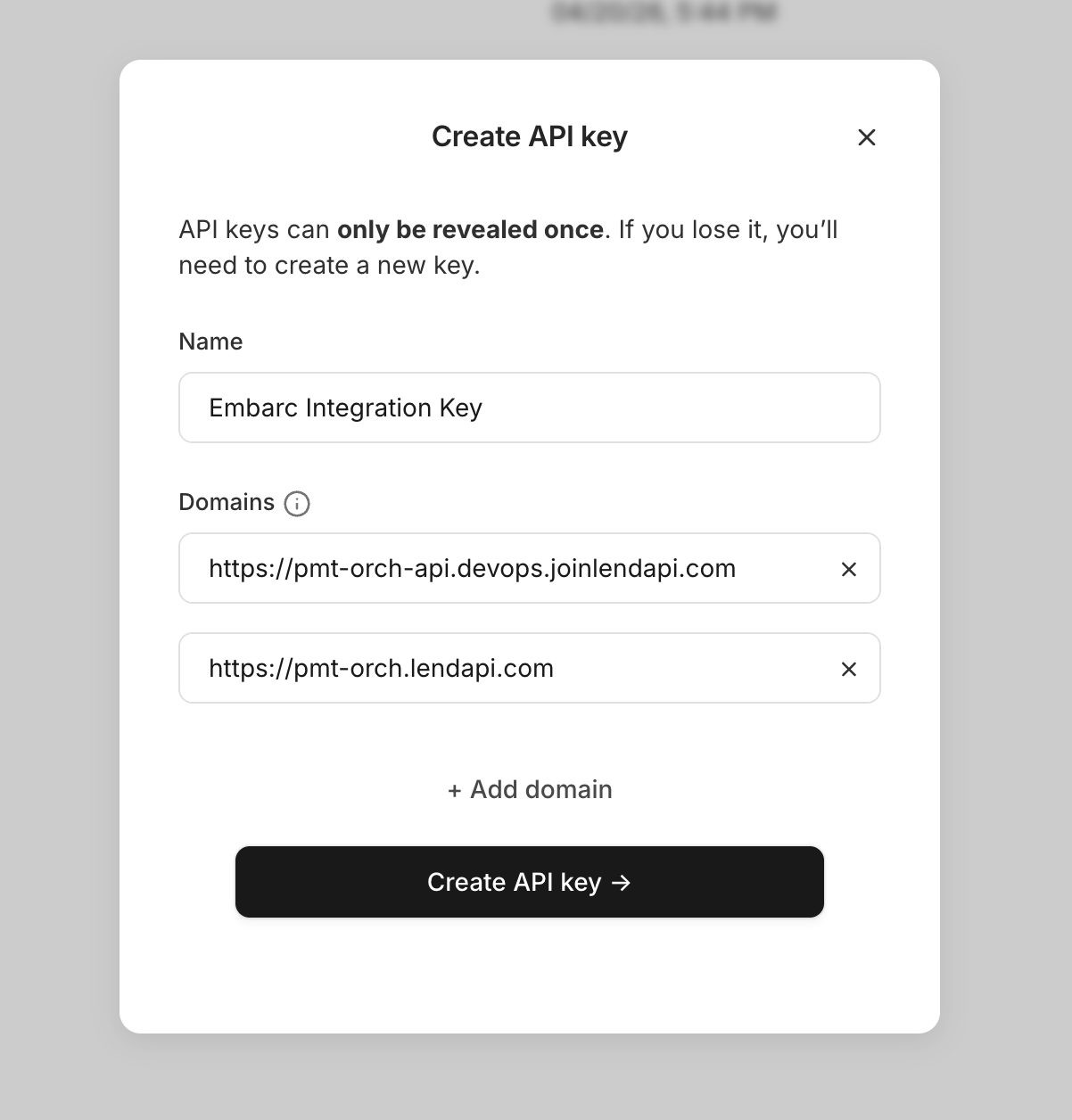
3. Public and Secret Key will be created
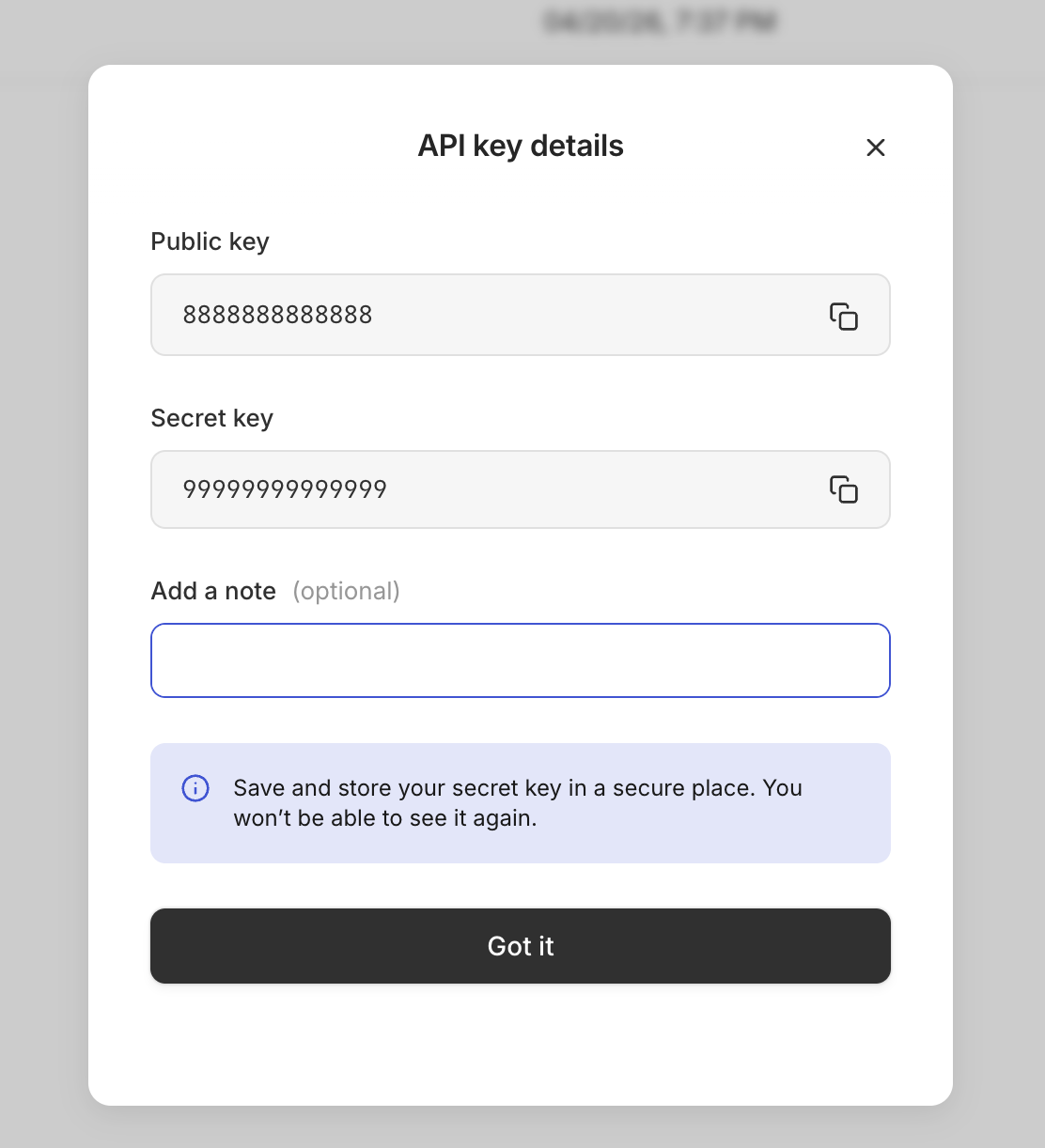
Create Integration Component in Embarc
- Go to Integration and searching for
Moov, and enabled then click on Moov widget
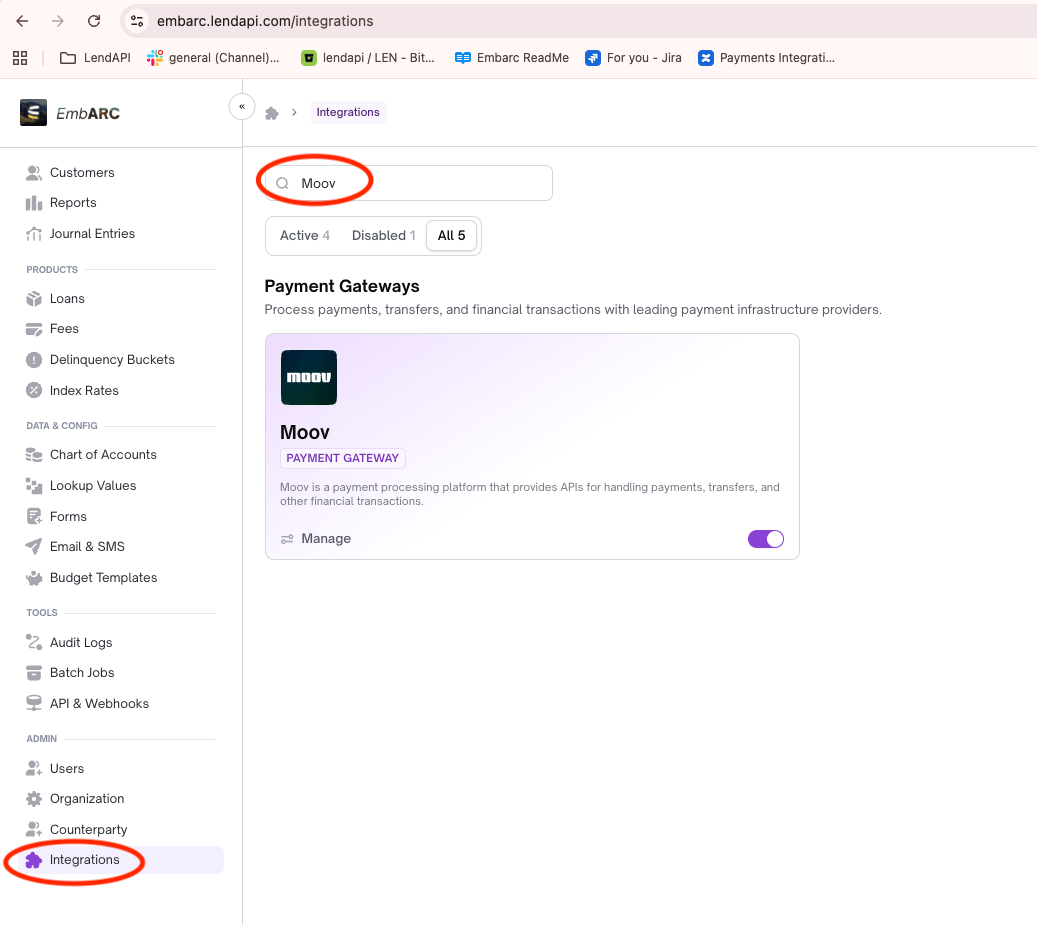
- Open Configuration
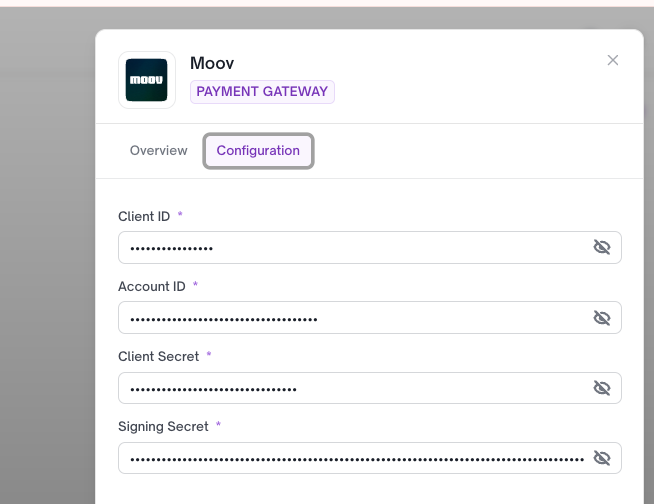
Make sure these field are ready
Client IDis Moov Public KeyAccount IDis Moov Dashboard Admin IDClient Secretis Moov Secret KeySigning Secretis Moov Signing secret
a. Regarding Client ID and Client Secret you can find from
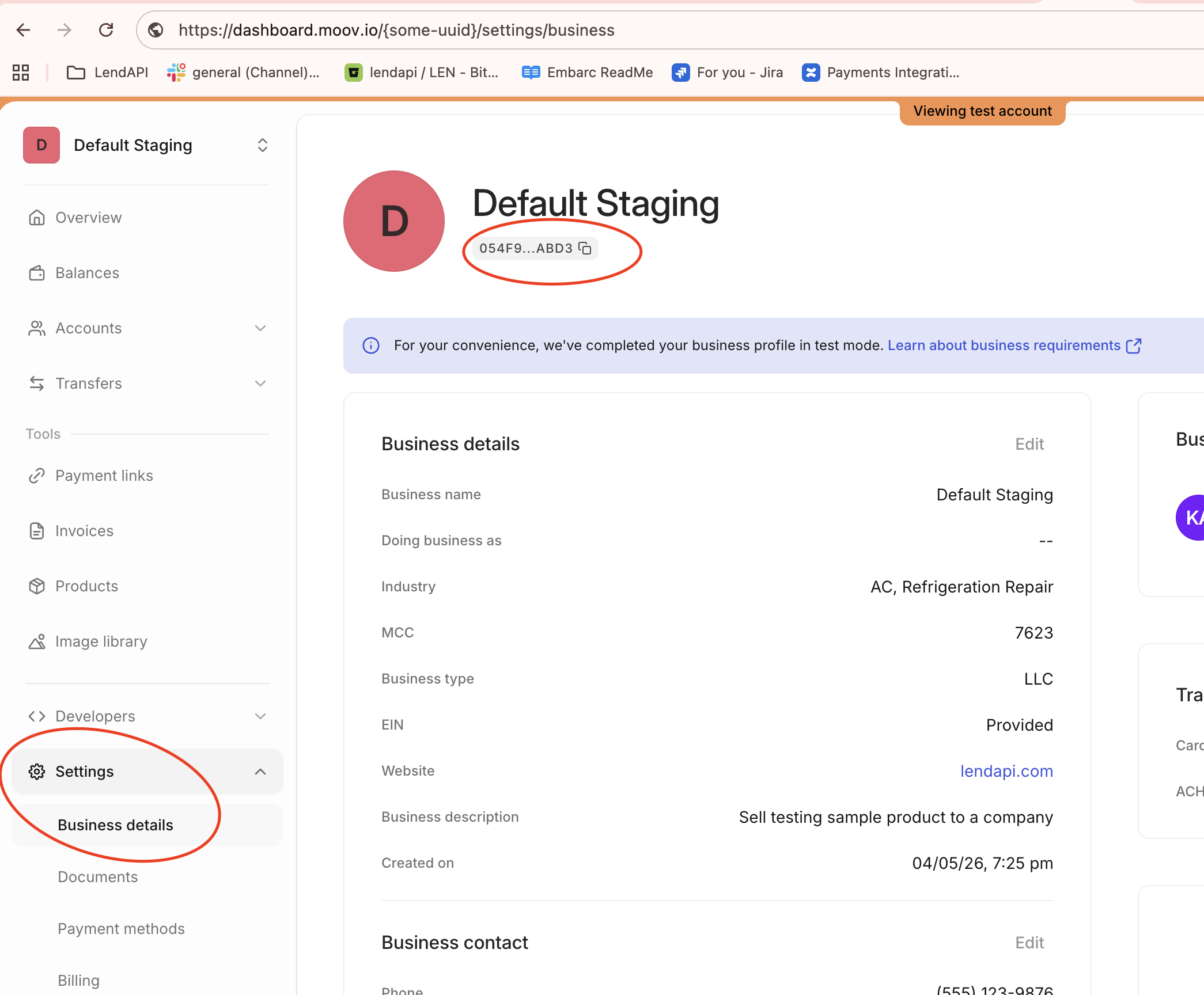
b. Account ID
Go to settings -> Business details -> Click on the copy icon
c. Signing Secret
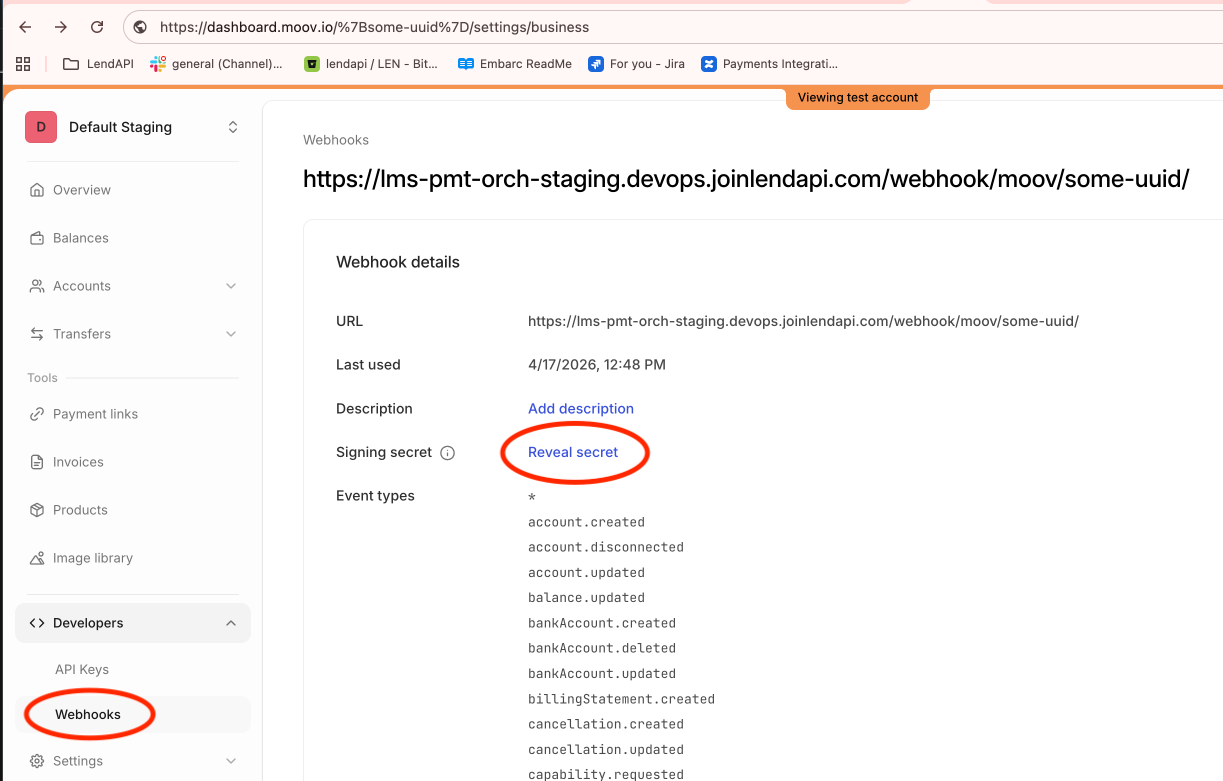
Go to Developers -> Webhooks -> any webhook details -> signing secret -> click on Reaveal secret
Updated 22 days ago